Tablature
Tab Mode
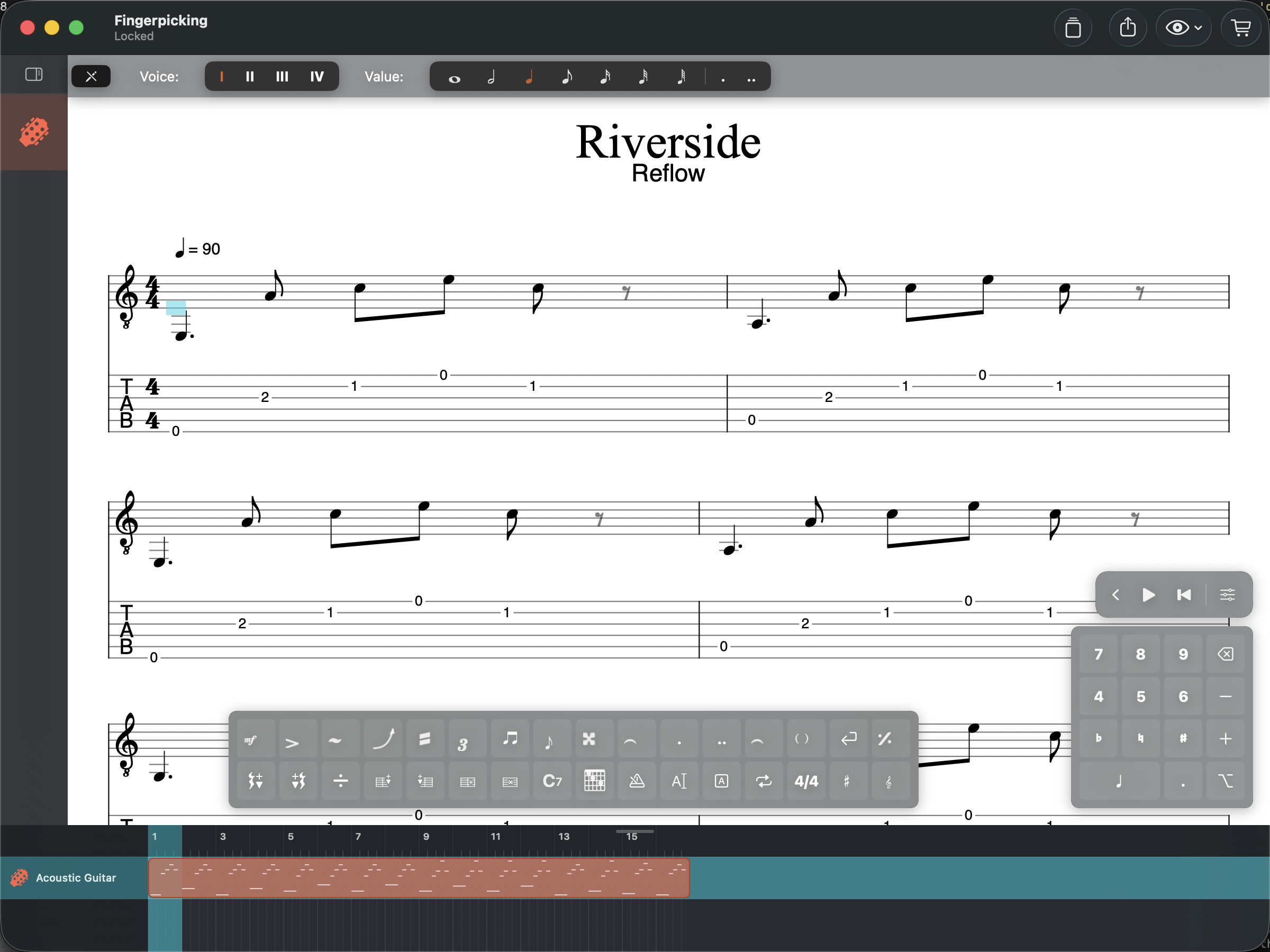
Double-click (Mac) or double-tap (iPad) on a tablature staff to enter Tab Mode. A blue cursor appears, showing where your next note will go.
Entering Fret Numbers
Type 0–9 on your keyboard to enter fret numbers. For frets 10 and above, type the digits quickly in sequence (e.g., 1 then 2 for fret 12).
Navigation
| Key | Action |
|---|---|
| Left / Right | Move between beats |
| Up / Down | Move between strings |
| Tab | Advance to next beat (creates one if needed) |
| Delete | Remove the note under the cursor |
When you move the cursor past the last measure, a new measure is added automatically.
Note Duration
| Key | Action |
|---|---|
| + / - | Increase / decrease duration |
| . (dot) | Toggle dotted note |
Durations range from whole notes down to sixty-fourth notes. The tablature and standard notation staves stay synchronized — changing a fret number updates the pitch on the standard staff, and vice versa.
The Note Popup
When the cursor is on a note, a capsule appears in the top-right corner showing the current note name and fret number. Tap or click it to expand the note popup, which gives quick access to note properties — tied, dead, ghost, grace, accidentals, and dynamics — without opening the tools palette.
The Tool Palette
A vertical tool palette on the leading edge of the score provides four editing modes. Switch modes by clicking the palette icons:
- Select — pick, drag, and inspect score objects
- Edit — note and tab input (the default when entering Tab Mode)
- Measure — select cells and measure ranges
- Design — fine-tune score layout by dragging systems and adjusting staff spacing
On iPhone, the palette appears as a horizontal capsule strip at the top.
Edit Mode
When Edit mode is active, two floating toolbars appear:
- Edit toolbar — voice selector (I/II/III/IV), note duration buttons (whole through 64th), dots, and ties
- Tools palette — notation tools organized by category: Rhythm, Dynamics, Articulation, Effect, Harmonic, Beat, Attach, and Note. Each category expands into a panel of related tools (e.g., Articulation includes bends, slides, hammer-ons, vibrato, palm mutes)
Measure Mode
When Measure mode is active, a Measure toolbar appears with operations for the selected range: Insert Before, Insert After, Delete, Duplicate, Cut, Copy, Paste, Create Clip, Time Signature, Key Signature, Clef, Section Marker, System Break, and Simile. Click to select a cell, or drag to select a range of measures.