Getting Started
Reflow is a tablature and notation editor for macOS and iOS. It works offline, requires no account, and saves files locally or in iCloud.
Installing Reflow
Reflow is available on the App Store for iOS and the Mac App Store. The core features are free — a one-time purchase unlocks the full version.
The Interface
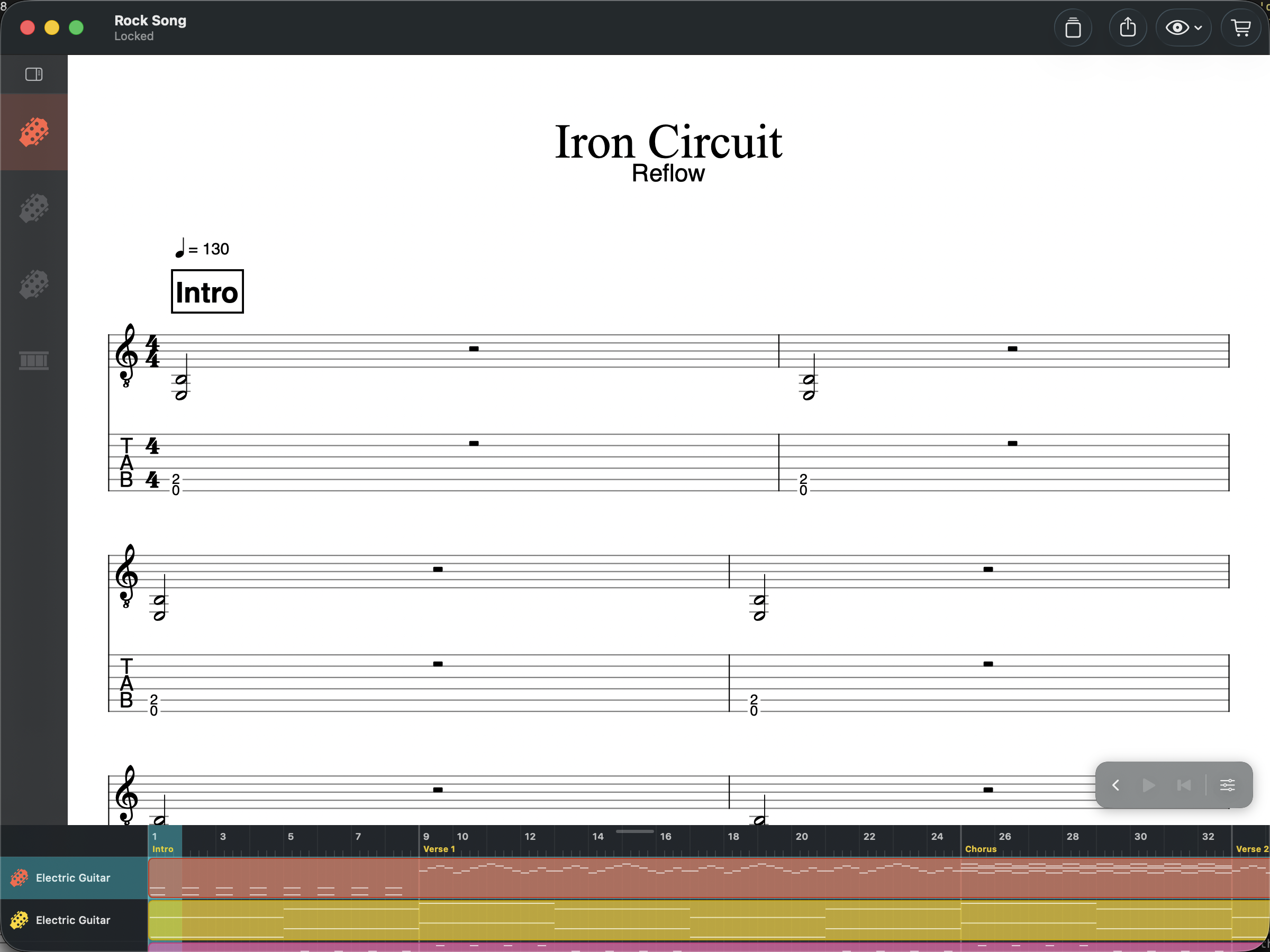
Score View
The score view is the main canvas where you write and edit music. Zoom and pan freely — pinch on iPad or Cmd+scroll wheel on Mac.
Double-click (Mac) or double-tap (iPad) on a staff to enter Tab Mode, which activates note input at the cursor position.
View Settings
The eye icon (top of the score) opens the View Settings menu, which controls how the score is displayed on screen without changing the document itself:
- Layout — switch between Page (paginated), Continuous Scroll (edge-to-edge systems, no page breaks), and Horizontal (single-system scroll)
- Fit Page Width — scale pages to match the viewport width
- Multitrack — show all tracks stacked, or just the active track
- Gray Out Inactive Voices — dim voices you’re not editing
- Score Theme — pick from 6 built-in themes: Classic, Dark, Sepia, Midnight Blue, Solarized Dark, Solarized Light. The theme only affects on-screen rendering — printed pages and exported PDFs always use Classic
- Score Style… — open the full style dialog for fine-grained typography, spacing, and music-font settings
The Rack
The rack is a vertical panel on the left edge showing all tracks. It has two modes:
- Compact — track icons with solo/mute buttons. Click a track to select it.
- Expanded — full track names, volume/pan sliders, instrument, and tuning. Click the rack header to toggle.
Bottom Panel
The bottom panel sits below the score and can switch between several modes using the strip on the left:
- Arranger — a bird’s-eye view of all tracks and measures for quick navigation, with volume/pan per track
- Keyboard — a virtual piano (C2–C6) for entering or previewing notes by tapping keys
- Fretboard — a virtual fretboard (24 frets) for string-aware note entry on tablature tracks
- Drumpad — a visual grid of your drum kit’s instruments for quick beat entry
Drag the resize handle at the top to adjust the panel height. On iPhone, the keyboard/fretboard/drumpad replace the numeric keypad when the panel is open, with essential edit actions (arrows, delete, +/-, split) in a tool strip on the right.
A Scale Tool button (tuning fork icon) overlays scale notes on the keyboard and fretboard to guide composition.
Playback Bar
The playback bar is a floating overlay in the bottom-right corner with transport controls: play, stop, and rewind. Click the chevron to expand and reveal metronome, speed, precount, and MIDI device selection.
Tool Palette
A vertical tool palette on the leading edge of the score lets you switch between four editing modes:
- Select — pick, drag, and inspect score objects
- Edit — note and tab input. Activates a floating Edit toolbar (voice selector, note durations) and a Tools palette with notation categories: Rhythm, Dynamics, Articulation, Effect, Harmonic, Beat, Attach, and Note
- Measure — select cells and ranges. Activates a Measure toolbar for insert, delete, duplicate, cut/copy/paste, time signature, key signature, clef, and section markers
- Design — fine-tune score layout by dragging systems and adjusting staff spacing
On iPhone, the palette appears as a horizontal capsule strip. Each mode activates its own contextual floating toolbar.
Dialogs
All property editing happens through dialog sheets — accessed from the Score and Note menus, the tools palette, or keyboard shortcuts. Dialogs include chord name, chord diagram, time signature, key signature, clef, tempo, tuning, bend, drum mapping, score style, document info, beat text, measure settings, and section marker.