Tab Techniques
Select a note in Tab Mode and use the tools palette to add techniques. Effects are organized in groups — tap and hold a group button to see variants (e.g., different bend types, slide directions).
Bends
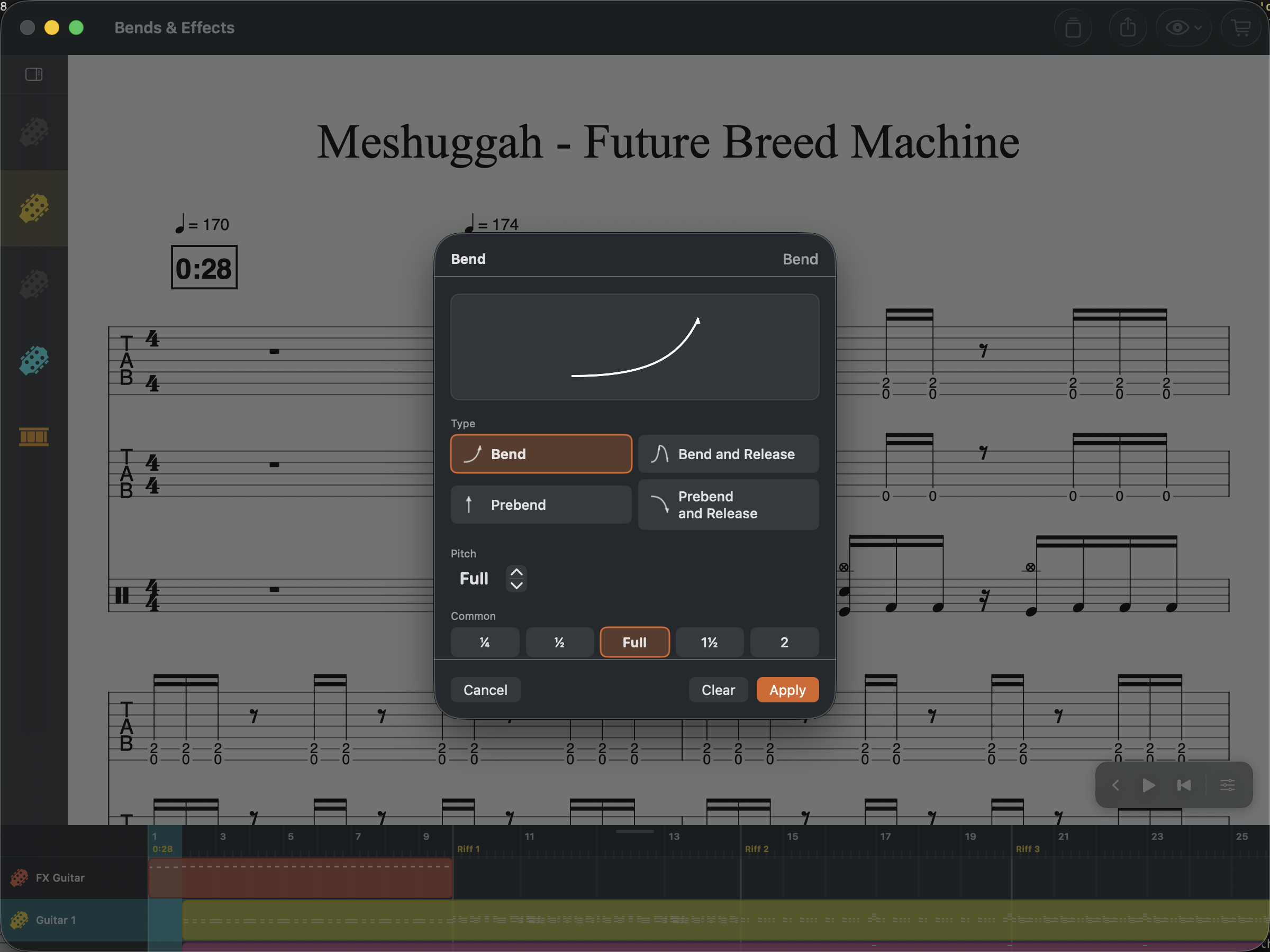
Reflow supports four bend types:
- Bend — raise the pitch by bending the string up
- Bend and Release — bend up, then return to the original pitch
- Pre-bend — bend the string before striking the note
- Pre-bend and Release — start bent, then release to the original pitch
Open the Bend dialog from the tools palette to adjust the bend amount and release pitch.
Dead Notes
A dead note (notated with an X) produces a muted, percussive sound. Press the X key while in Tab Mode to enter one quickly.
Ghost Notes
Ghost notes are shown in parentheses and played very softly — barely audible. They add rhythmic texture without dominating the melody.
Tied Notes
Tied notes connect two notes of the same pitch across beats or measures, sustaining the sound without re-attacking.
Grace Notes
Small ornamental notes placed just before the main note. You can add multiple grace notes in sequence for drum flams or quick ornamental runs.
Staccato and Accents
- Staccato (dot) — play the note short and detached
- Accent (>) — emphasize the note slightly
- Marcato (^) — play with strong emphasis
Tremolo
Rapid repetition of a note, notated with slashes through the stem. Reflow supports x2, x4, and x8 tremolo speeds.
Pickstroke
Indicates picking direction for guitarists — downstroke (v) or upstroke (^).
Palm Mute, Let Ring, Vibrato
These are applied as segments — select a range of notes and add the effect. The marking spans all selected beats:
- Palm Mute (P.M.) — muted, percussive sound with the palm resting near the bridge
- Let Ring — notes sustain fully until the next change
- Vibrato — wavy line indicating pitch variation for expressiveness
Slurs
Select a range of notes and add a legato slur to indicate smooth, connected playing. Outside of Tab Mode, click a slur to adjust its shape by editing anchor and control points.
Brush and Arpeggio
- Brush — a sweep across the strings in one motion
- Arpeggio — play chord notes consecutively rather than simultaneously, with up or down direction
Tremolo Bar (Whammy)
Select a range of notes and add a Tremolo Bar segment to notate whammy-bar dives and pitch drops. The range is marked with a w/bar label, and playback renders the pitch variation using MIDI pitch-wheel data.
Use the Inspector to adjust the bend amount on a selected tremolo-bar segment.
Beat Text
Attach text directly to any beat — useful for lyrics, performance directions, or section annotations. Open the Beat Text dialog from the tools palette or Score menu.
Harmonics
Reflow supports five types of harmonics:
- Natural — touch the string lightly at a harmonic node (frets 5, 7, 12, etc.) for a bell-like tone
- Artificial — fret a note normally, then touch the string 12 frets higher with the picking hand
- Pinch — brush the thumb against the string right after picking for a squealing overtone
- Semi — partially muted harmonic, producing a softer ring
- Feedback — sustained note producing harmonic feedback from amp proximity
Harmonics display with diamond noteheads on the score. Playback transposes the MIDI pitch to the correct harmonic frequency.
Lyrics
Add lyrics to any beat using the Beat Text tool or the keyboard shortcut. Lyrics appear below the staff and support up to 5 lines per beat for multiple verses.
When entering lyrics, press Space to advance to the next beat, or Hyphen to split a word across beats (Reflow draws the connecting hyphen automatically). Lyrics continue across bar lines.
Dynamics
Standard dynamic markings from ppp to fff, placed below the staff to indicate volume levels. These affect playback intensity.