Playback
The Playback Bar
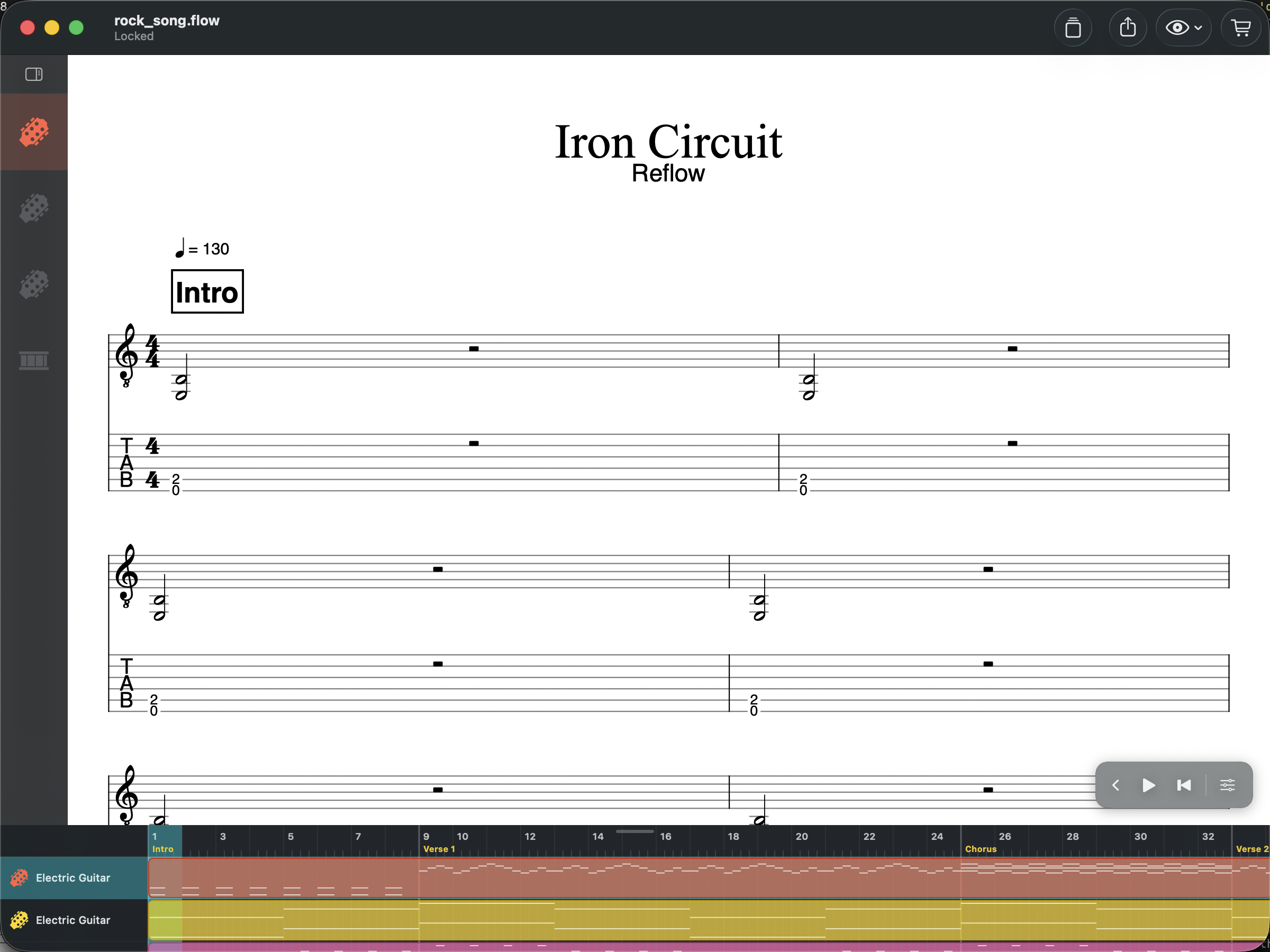
The playback bar is a floating overlay in the bottom-right corner. It shows play, stop, and rewind by default — click the chevron to expand and reveal the full set of controls:
- Play / Stop — start or stop playback (Space on Mac)
- Rewind — jump back to the beginning
- Speed — slow down or speed up playback from 0.25× to 2×, for practice
- Metronome — toggle a steady click track during playback
- Precount — a count-in click before playback starts (one full measure at the current tempo, silent on the score and audible on the metronome)
- Tracking (scope icon) — automatically scrolls the view to follow the playhead across systems and pages. Turn it off to stay put while the audio plays through
- Loop — toggle the A–B repeat markers (see below)
- Speed Trainer (hare icon) — gradual tempo ramp for practice (see below)
- MIDI device — select an external MIDI input device for step-by-step note entry
Loop / A-B Repeat
Toggle the repeat button in the playback bar (or press ⌘L on Mac) to set a loop region. Two markers — A and B — appear on the score at the barlines of the current measure.
- Drag either marker to snap to a different barline — works across systems
- The loop region is highlighted on the score
- Audio loops between A and B during playback
- The audio engine updates the loop range in real time as you drag
You can also select a range of measures and start playback to loop that selection.
Loop markers are also available in the web player when sharing scores via Instant Web Share.
Speed Trainer
The Speed Trainer gradually increases tempo across successive loops — useful for practicing a passage up to performance speed. Set a loop region first (or play a measure selection), then tap the hare icon in the expanded playback bar.
Configure the ramp:
- Start — tempo to begin at, as a percentage of the score’s tempo (10–200%)
- Target — tempo to work up to (must be higher than Start)
- Step — how much to add each time
- Loops/step — how many times to repeat each tempo before stepping up
- Count-in between loops — a metronome count-in between iterations
Tap Start Training to begin. The panel shows the current tempo percentage, a progress bar, and the loop counter. When the target is reached, playback keeps looping at the target tempo and the counter turns green. Tap Stop Training to return to normal playback.
Edit While Playing
Reflow lets you edit the score while playback is running. You can change notes, add effects, and adjust dynamics without stopping — hear your changes immediately.
Tempo
Open the Tempo dialog from the Score menu to set the tempo in BPM. Tempo changes can be placed at any measure.
The beat type specifies what note gets one beat — typically a quarter note, or a dotted quarter in compound meters like 6/8.
Shuffle / Swing Feel
Enable shuffle in the Tempo dialog to turn straight eighth notes into a swing feel. This creates a “long-short” pattern common in jazz, blues, and funk. You can also apply a triplet feel for more pronounced swing.