Drum Notation
Drum tracks use a percussion staff with different noteheads and staff positions for each part of the kit.
Entering Drum Notes
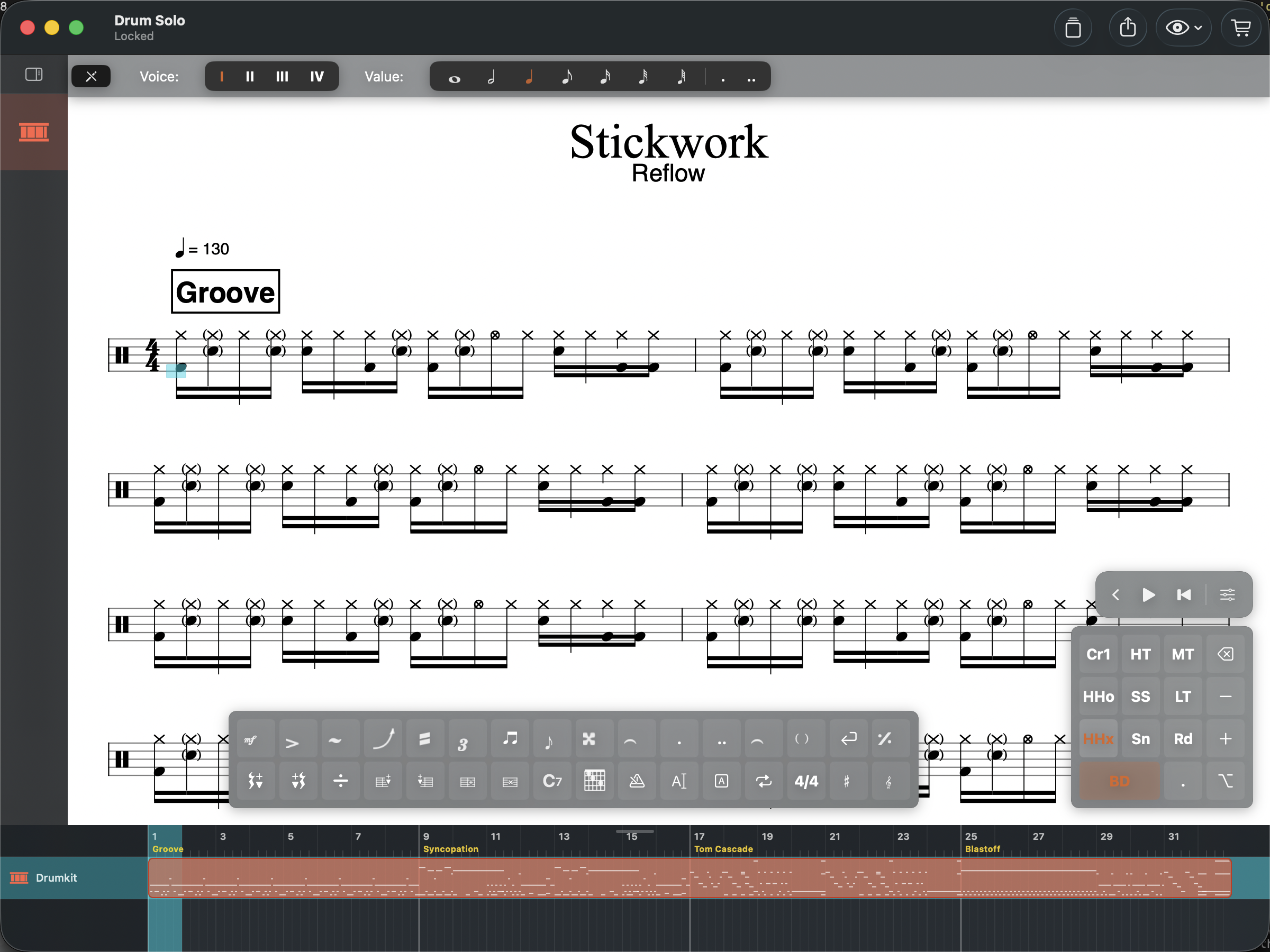
In Tab Mode on a drum staff, use the number keys for quick input:
| Key | Instrument |
|---|---|
| 0 | Bass Drum |
| 1 | Hi-Hat (Closed) |
| 2 | Snare Drum |
| 3 | Ride Cymbal |
| 4 | Hi-Hat (Open) |
| 5 | Side Stick |
| 6 | Low Tom |
| 7 | Crash Cymbal |
| 8 | High Tom |
| 9 | Mid Tom |
Multiple hits can land on the same beat (e.g., bass drum + hi-hat together). Just move to the right position and type the number.
Drumpad
Switch the bottom panel to Drumpad mode for a visual grid of your kit’s instruments. Each pad shows the instrument short name and MIDI number. Tap a pad to enter that hit at the current cursor position — the note toggles on and off.
The drumpad layout is a fixed grid of 2 rows (cymbals on top, drums on bottom) with a configurable number of columns. Open the Drum Mapping dialog to customize which instruments appear on which pads, add or remove columns, and drag instruments between slots.
Sticking
Add L (left hand) and R (right hand) sticking annotations above drum notes. This helps drummers develop consistent hand patterns and execute complex fills.
Drum Mapping
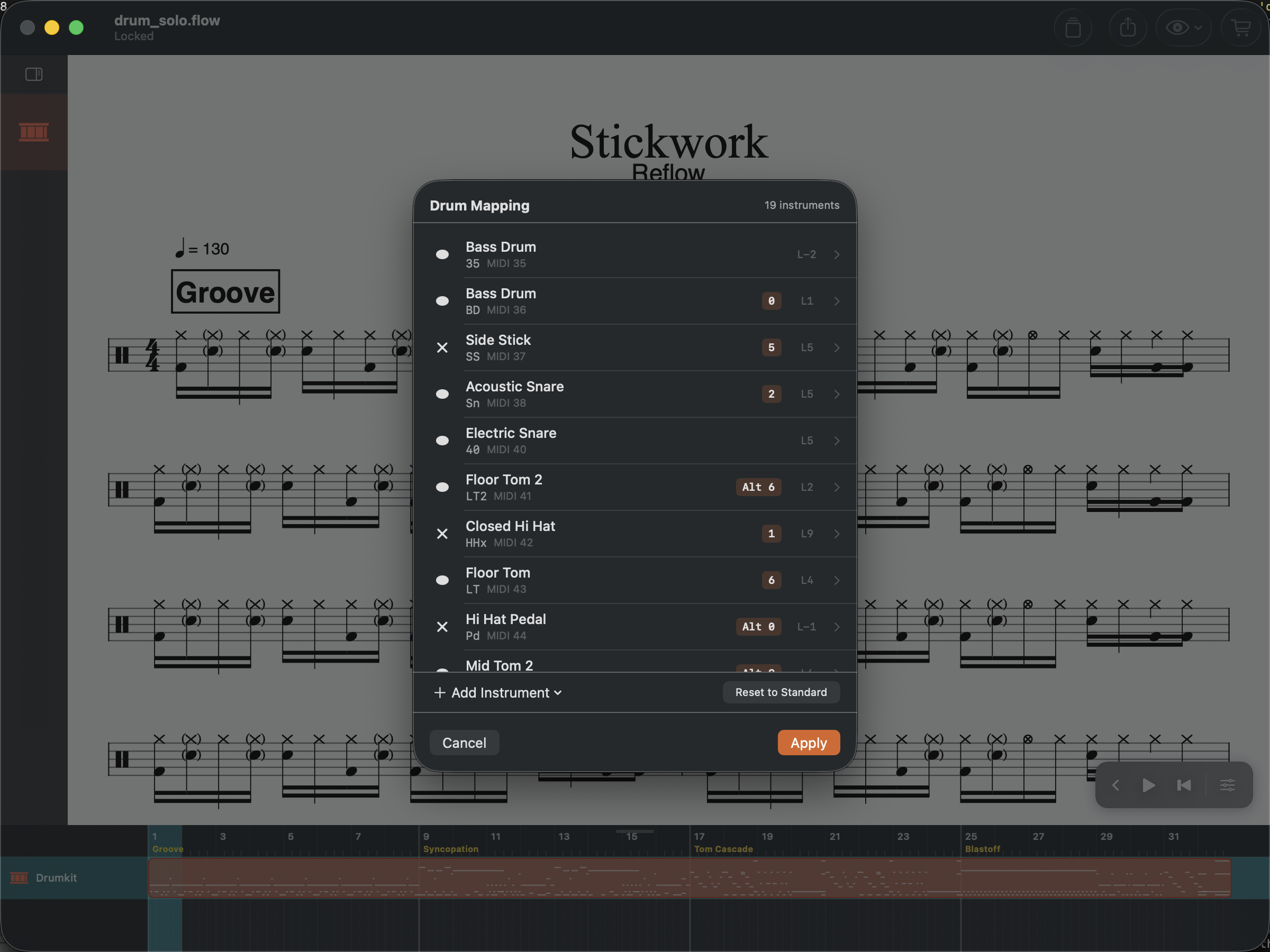
Open the Drum Mapping dialog from the Score menu to customize which drum sounds map to which staff positions and noteheads. Each row shows a drum element with its MIDI note, staff position, and notehead style. You can reassign elements to different lines or spaces on the staff and choose between normal, cross, diamond, and triangle noteheads.
Grace Notes for Flams
Add multiple grace notes before a drum hit to notate flams and drags — common rudiments in snare drumming.
Playback
Drum sounds use the General MIDI percussion channel with the built-in SoundFont. Each drum element plays its correct sample during playback.