Creating a Score
New Document
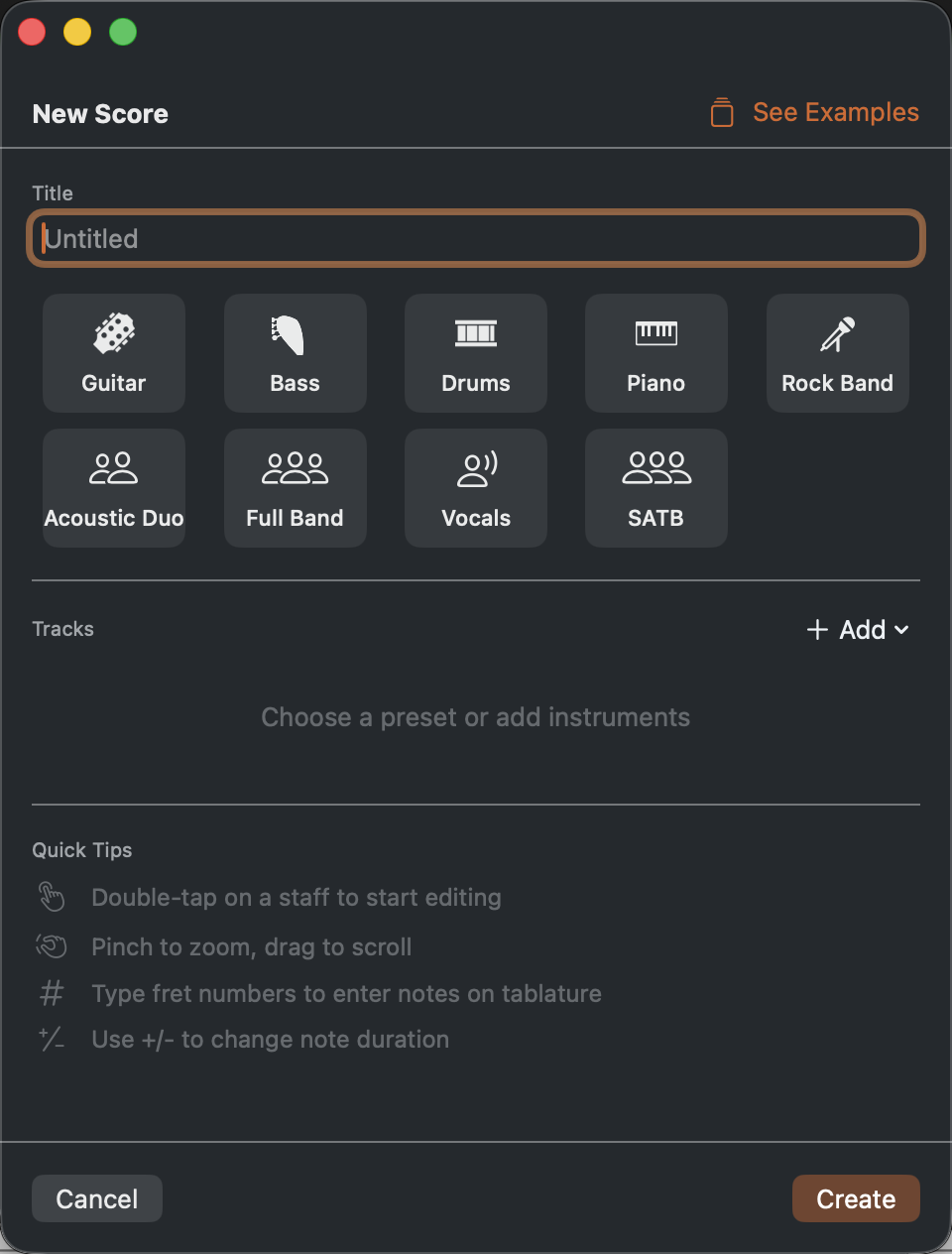
Choose File > New on Mac or tap + on iOS to create a new score. You can start from a template (solo guitar, bass, full band, etc.) or add tracks manually to a blank document. Tap See Examples to browse sample scores and hear what Reflow can do.
Document Metadata
Open the Document Info dialog (Cmd+I on Mac, or Score menu) to set the title, subtitle, artist, and copyright. The title and artist appear on the first page of the score, and the copyright appears in the footer of every page.
Working with Measures
Measures are created automatically as you move the cursor past the end of the score. You can also use the Score menu or tools palette to:
- Insert a measure before the cursor
- Add a measure after the cursor
- Duplicate the current measure
- Delete the current measure
To select a range of measures, drag across barlines. Selected measures can be copied, cut, or deleted.
Add section markers to any measure from the Score menu or the Section Marker dialog — useful for marking verses, choruses, and sections.
Saving
Reflow uses the .flow file format, a ZIP-based archive. Files save locally and work with iCloud for syncing between devices. No account required.